Olymptrade Deposit via Bank Cards: Visa, Mastercard, JCB, Discover
Writen By

Online Trading Platform Researcher and Guide Writer
Researches broker platforms and trading account Systems.
Funding a trading account with a bank card often seems straightforward, but declines, mismatched currencies, and 3D Secure checks can cause unexpected delays. This overview focuses on what affects card payments for Olymptrade—card acceptance rules, common reasons for failure, and quick pre-checks to reduce holdups before you confirm a payment.
You’ll get clear expectations for processing times, how minimums and limits are applied, and the verification steps that may be required after a card deposit. Practical troubleshooting tips explain what to check with your bank, when to retry a payment, and when to contact Olymptrade support so deposits credit correctly while keeping your card data and account security protected.
You’ll get clear expectations for processing times, how minimums and limits are applied, and the verification steps that may be required after a card deposit. Practical troubleshooting tips explain what to check with your bank, when to retry a payment, and when to contact Olymptrade support so deposits credit correctly while keeping your card data and account security protected.

How do I make A Deposit
Deposit using Desktop
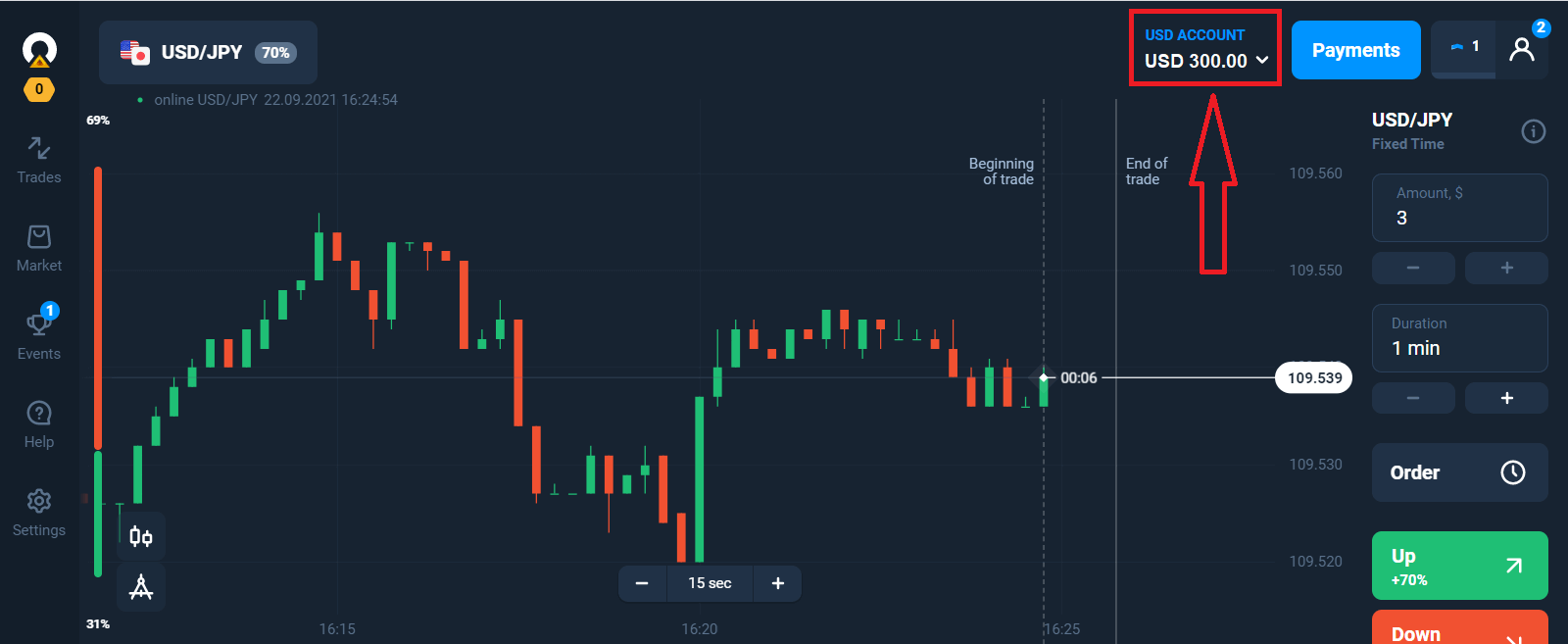
Click "Payments" button.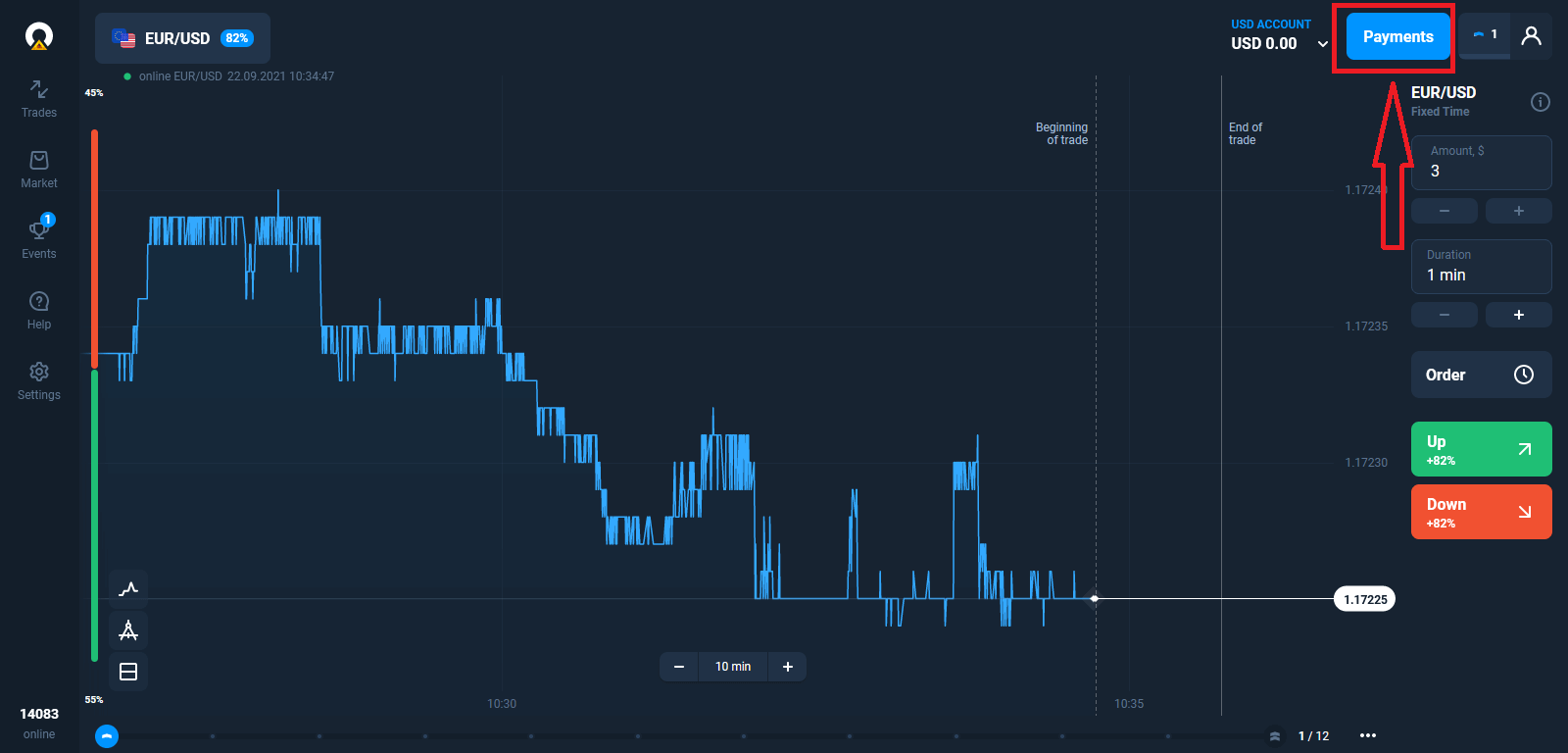
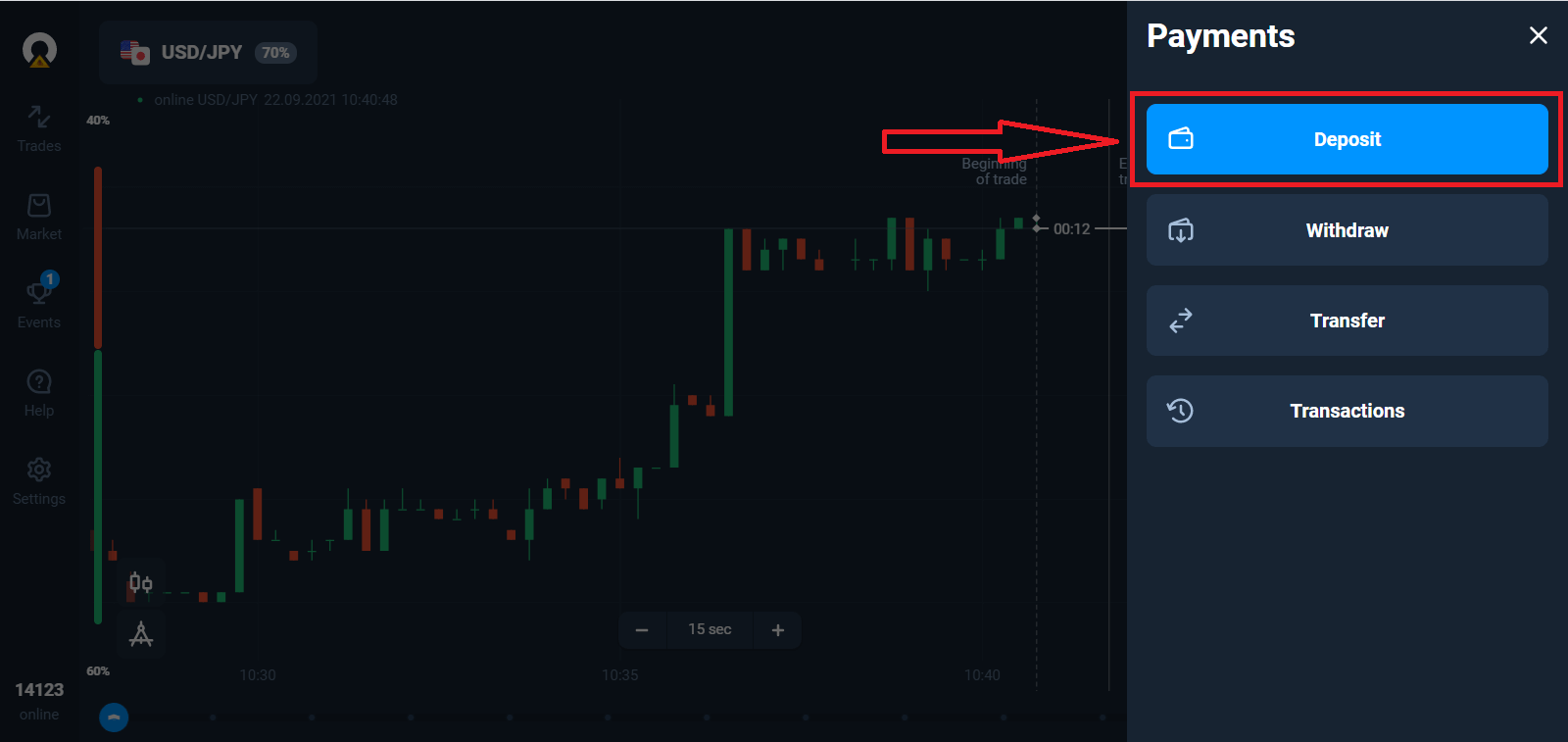
Go to the Deposit page.
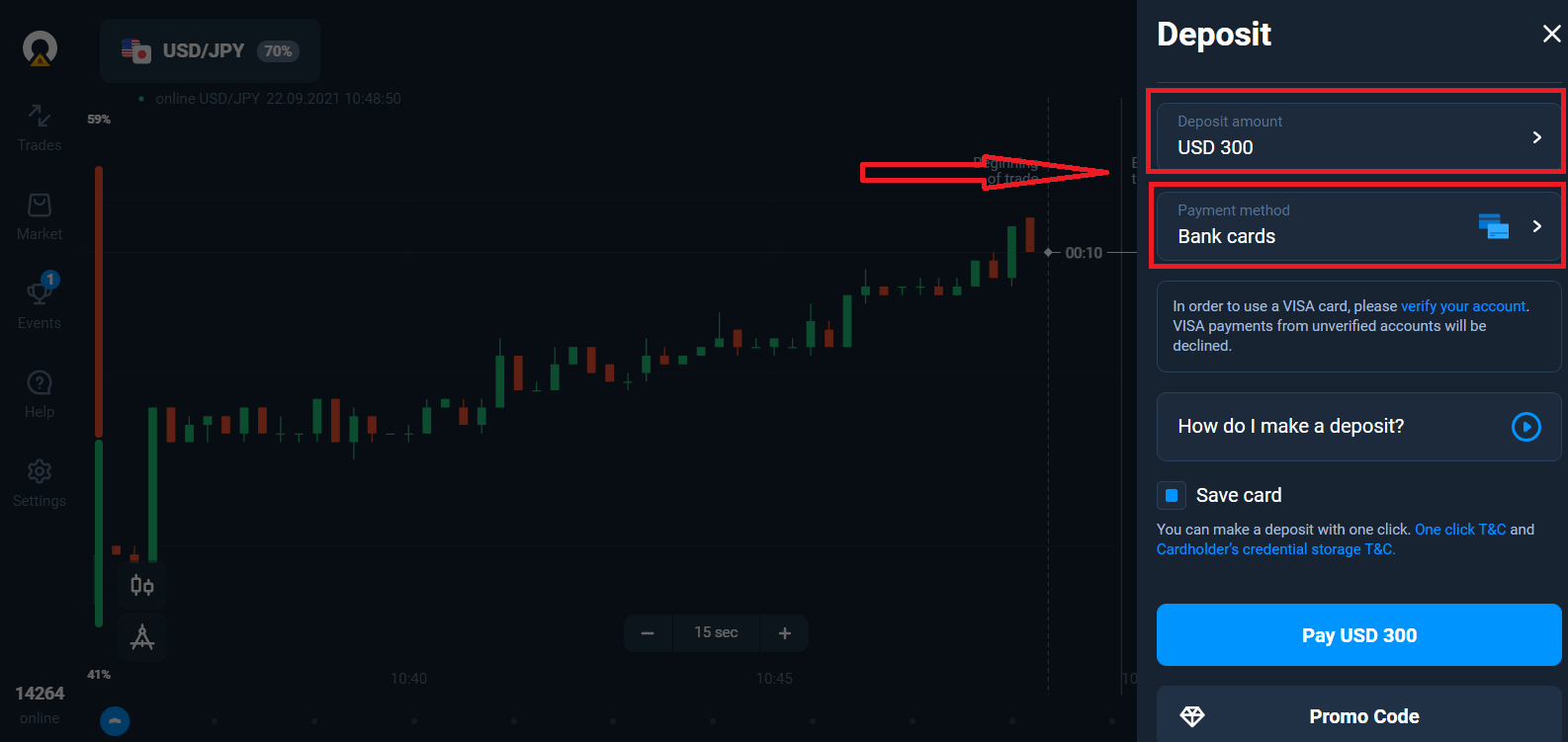
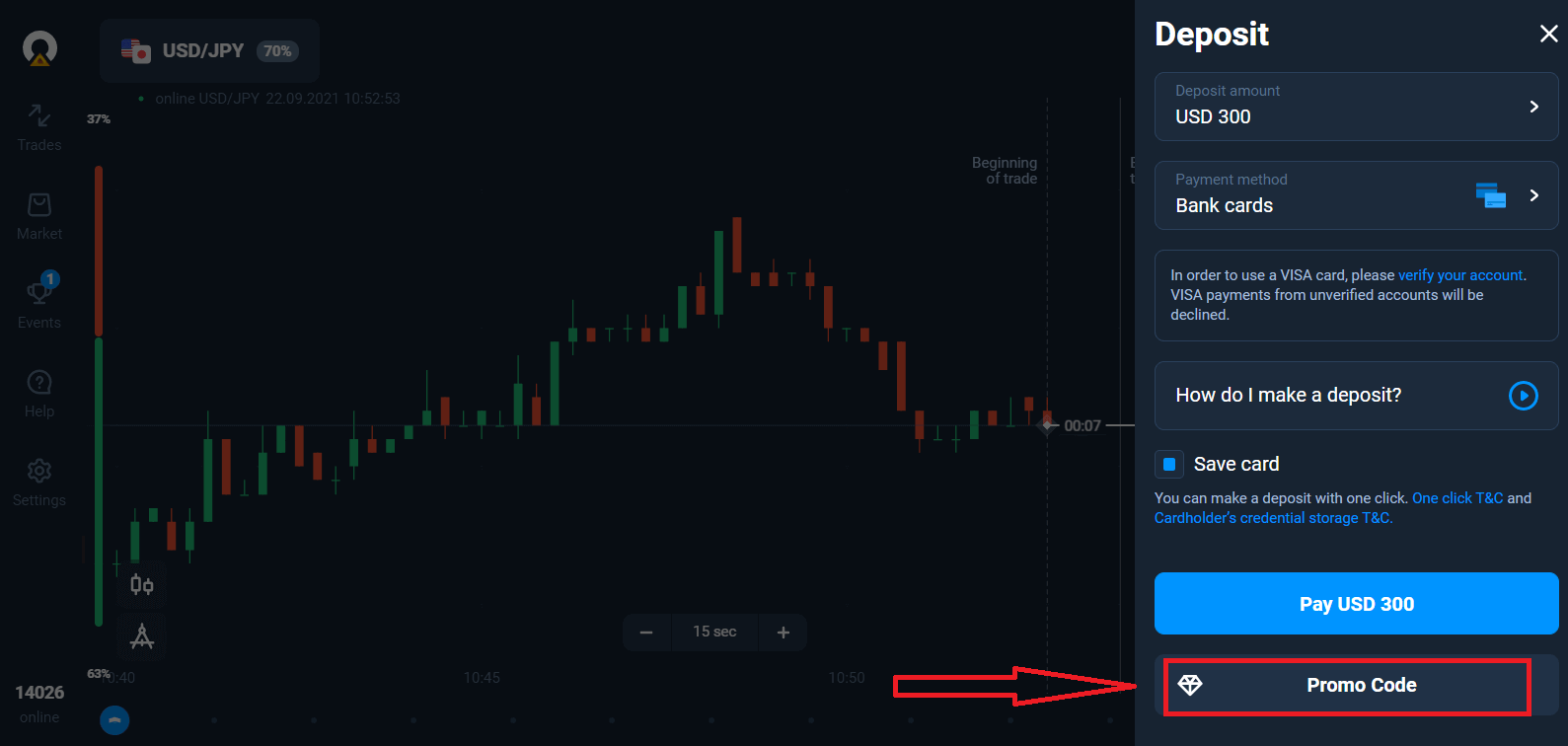
Select a payment method: Bank cards and enter the amount of your deposit. The minimum deposit amount is just $10/€10. However, it may vary for different countries.
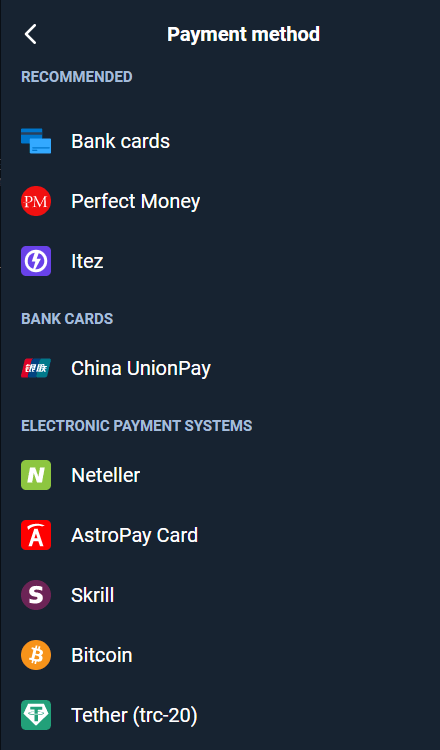
Some of Payment Options in the list.
The system may offer you a deposit bonus, take advantage of the bonus to increase the deposit.
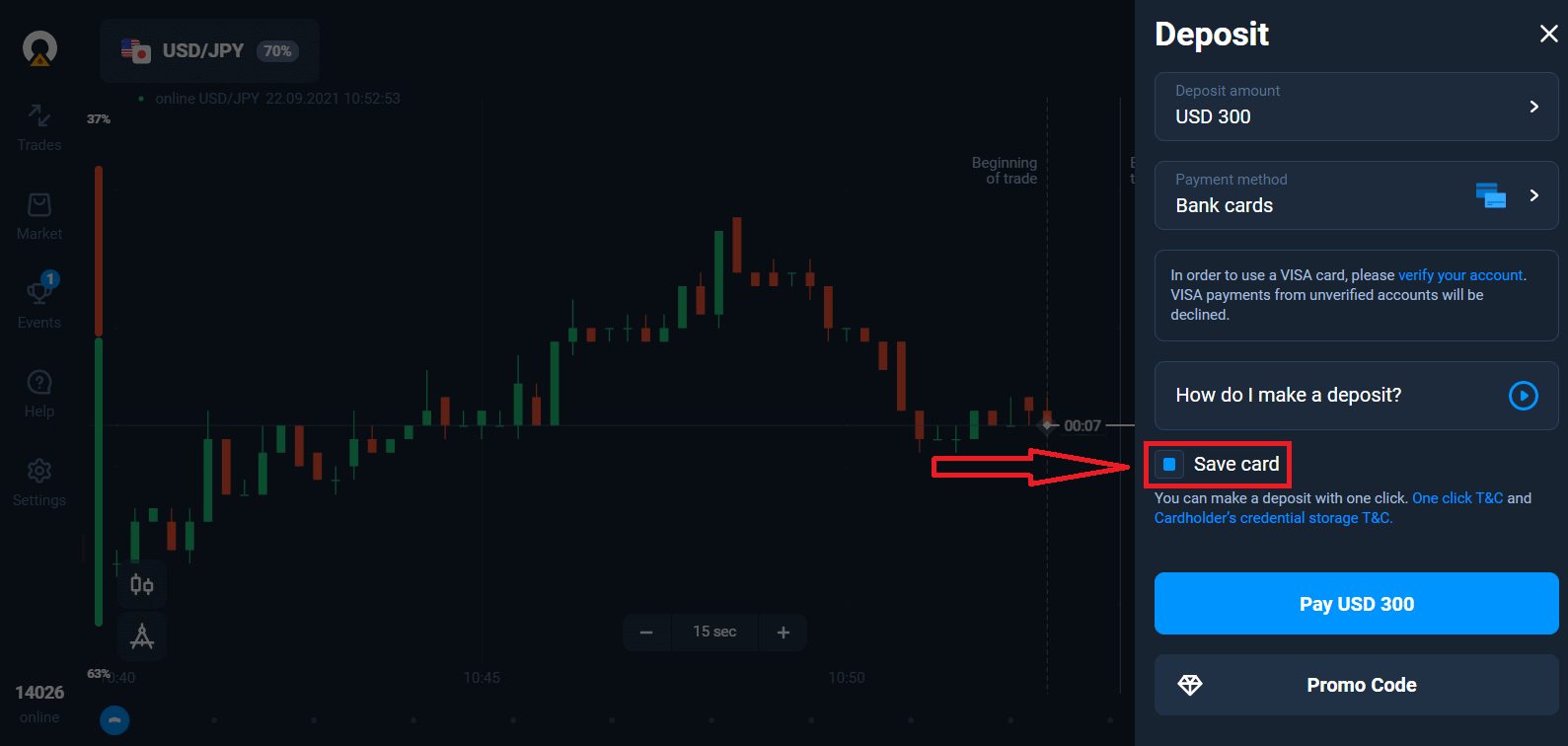
If you top up with a bank card, you can store your card details to make one-click deposits in the future.
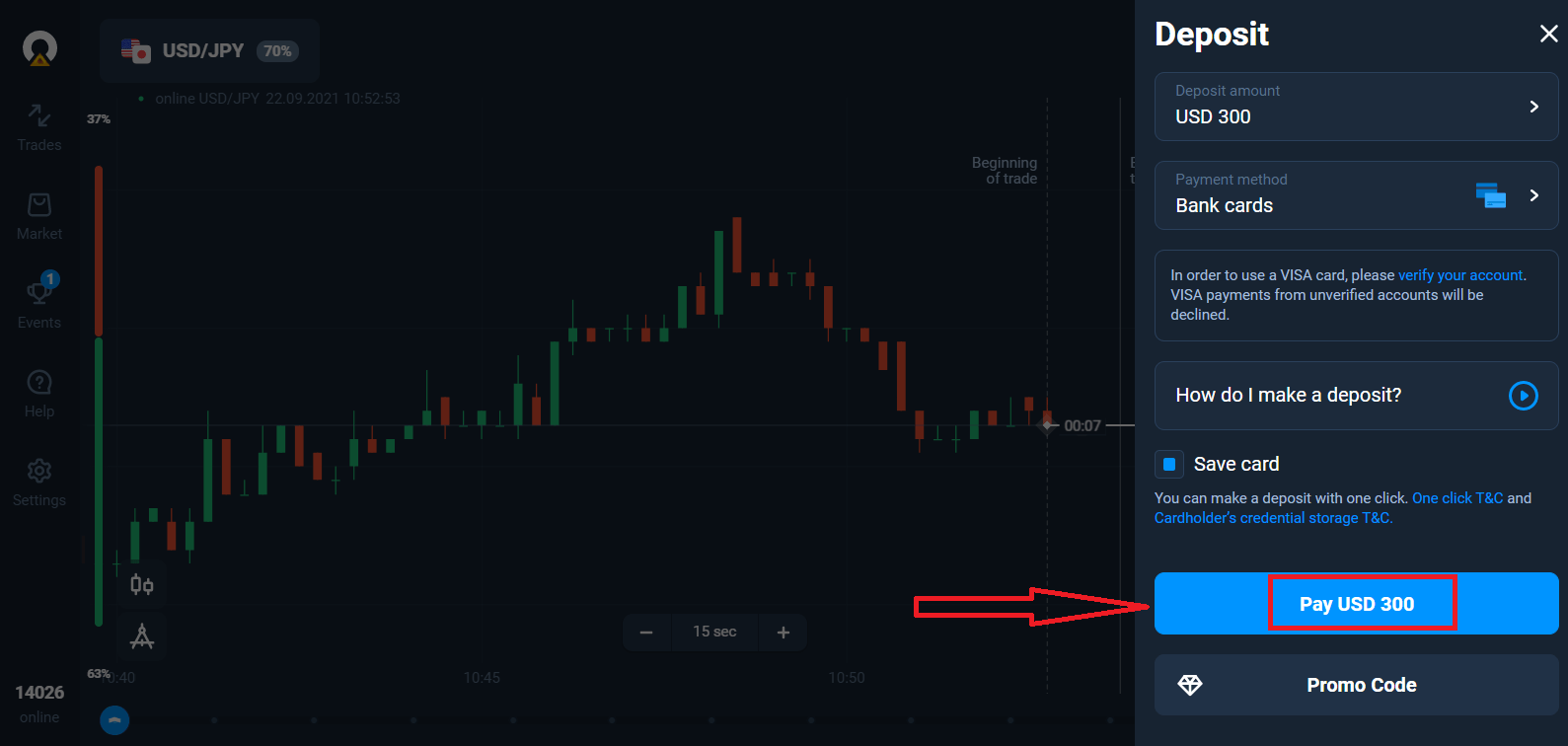
Click "Pay..." blue button.
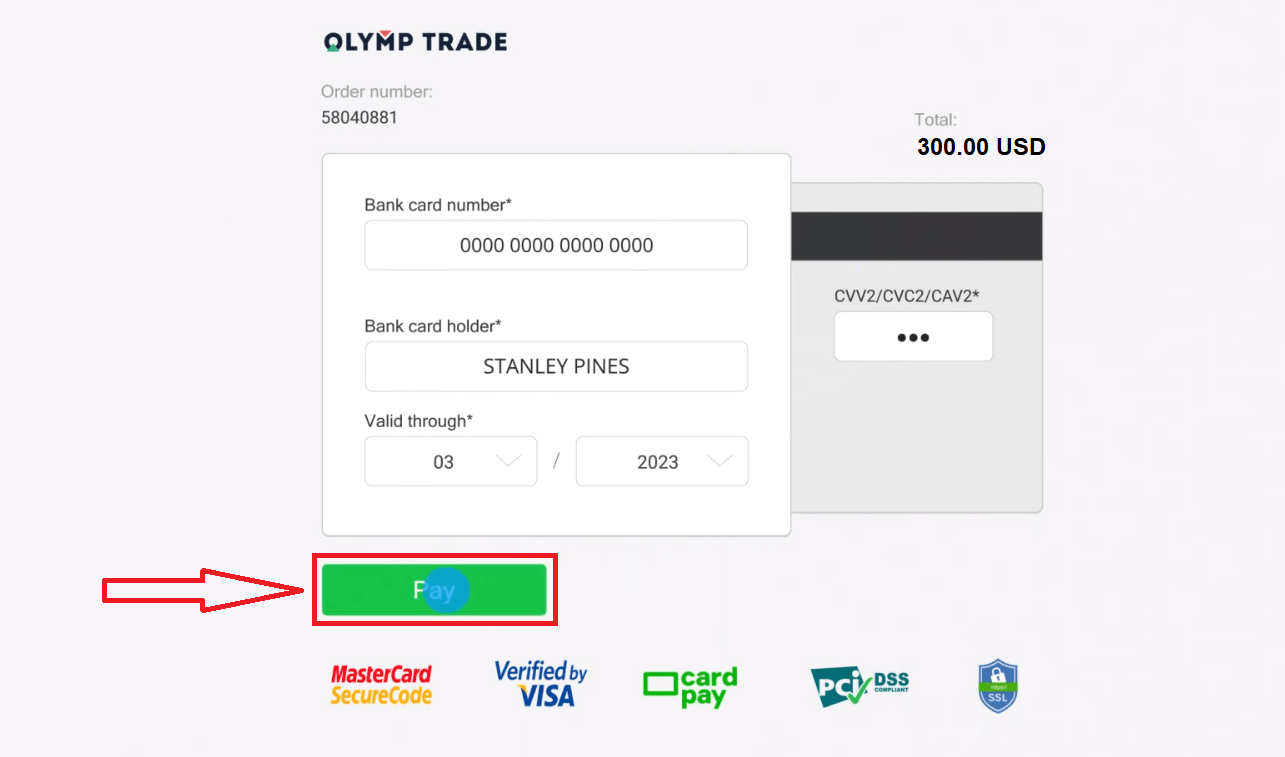
Enter the card data and click "Pay".
Now you can trade on Real Account.
Deposit using Mobile device
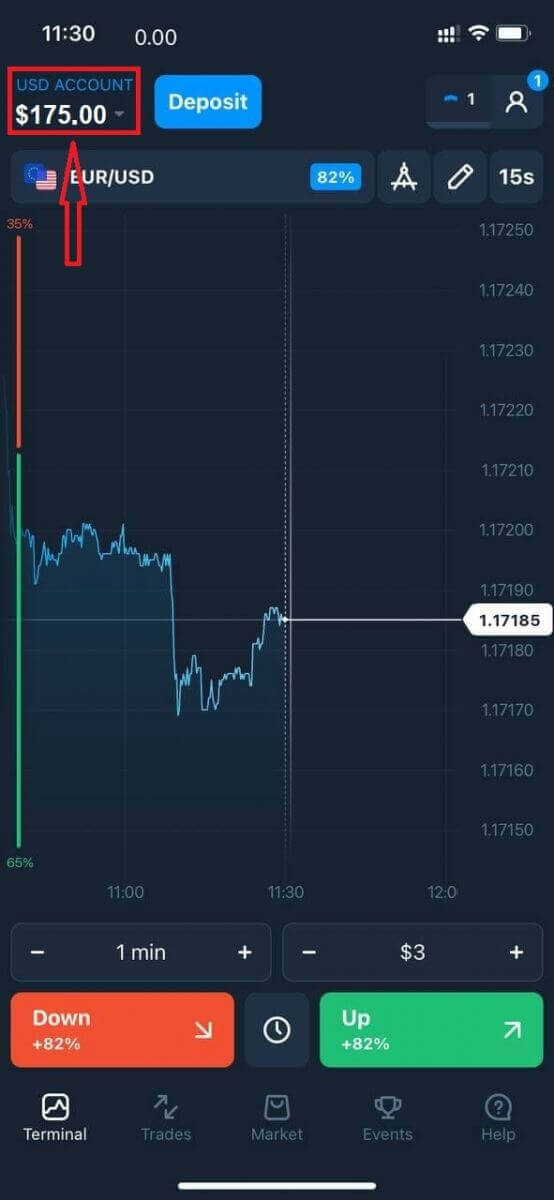
Click "Deposit" button.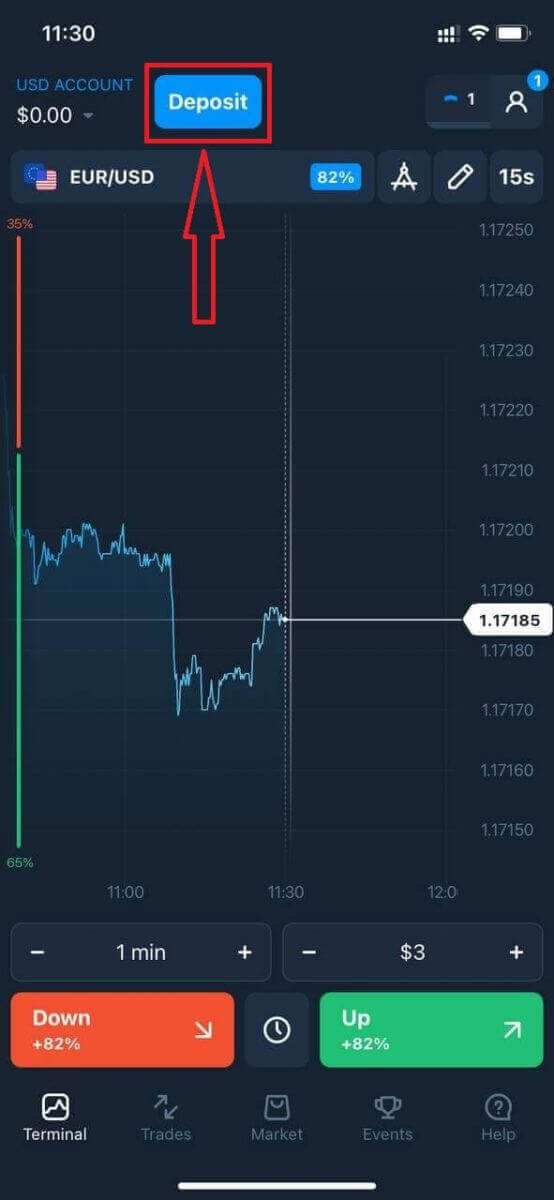
Select a payment method and enter the amount of your deposit. The minimum deposit amount is just $10/€10. However, it may vary for different countries.
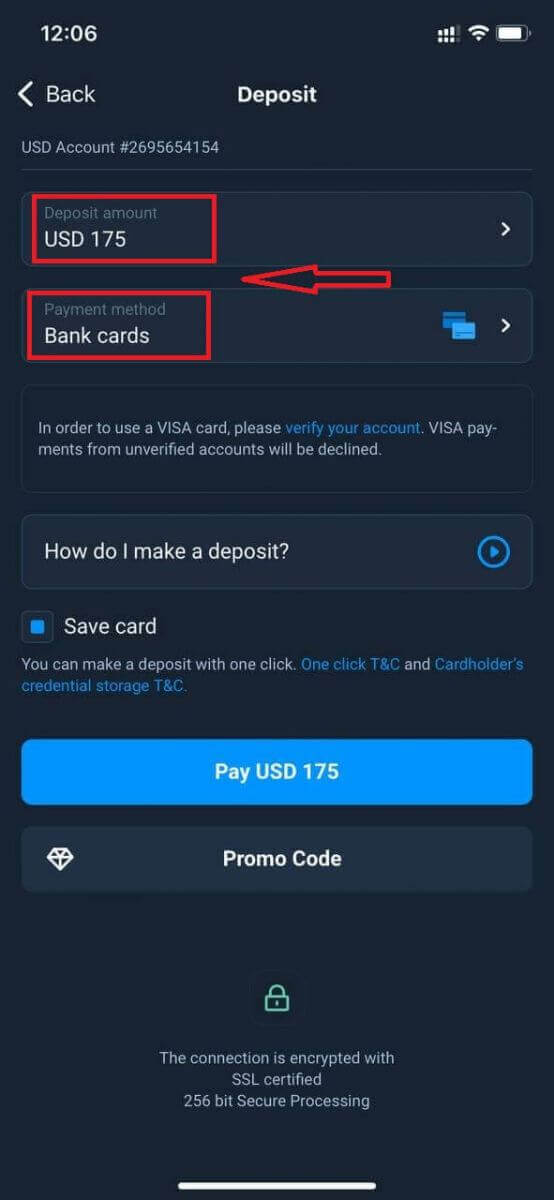
Some of Payment Options in the list.
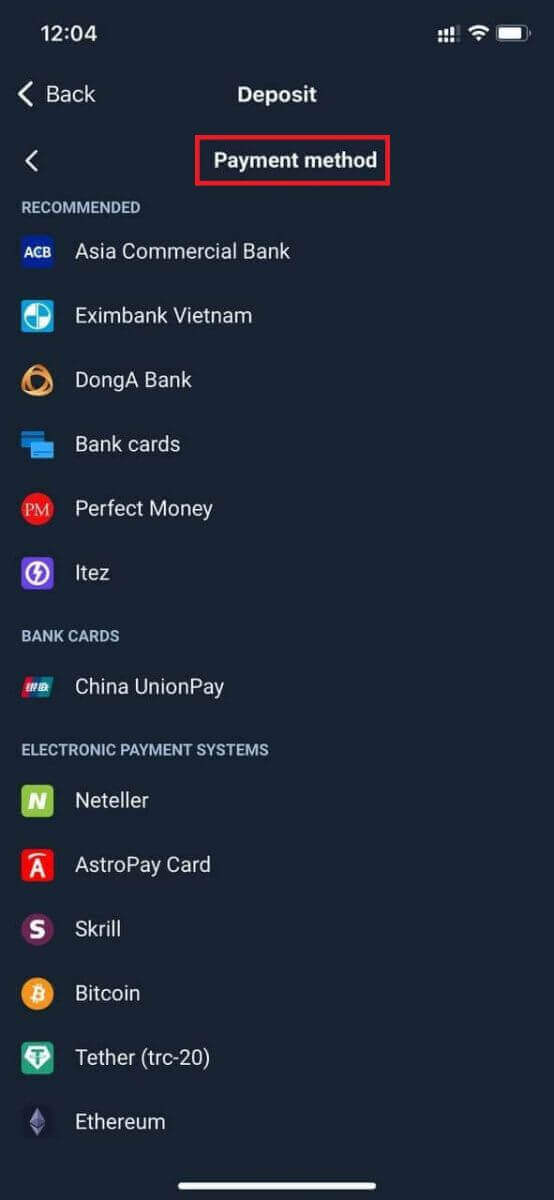
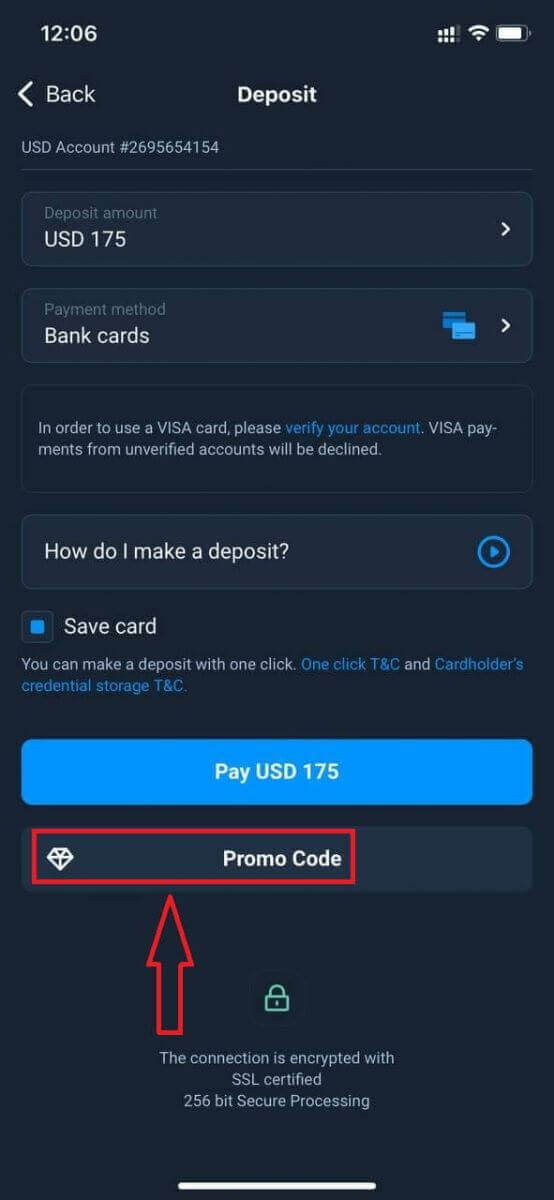
The system may offer you a deposit bonus, take advantage of the bonus to increase the deposit.
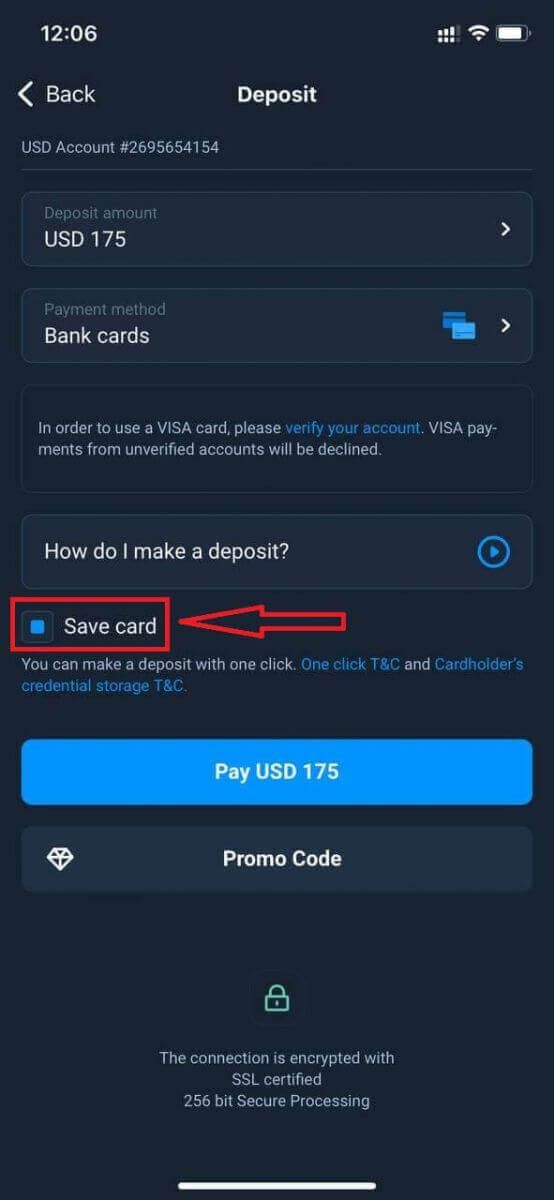
If you top up with a bank card, you can store your card details to make one-click deposits in the future.
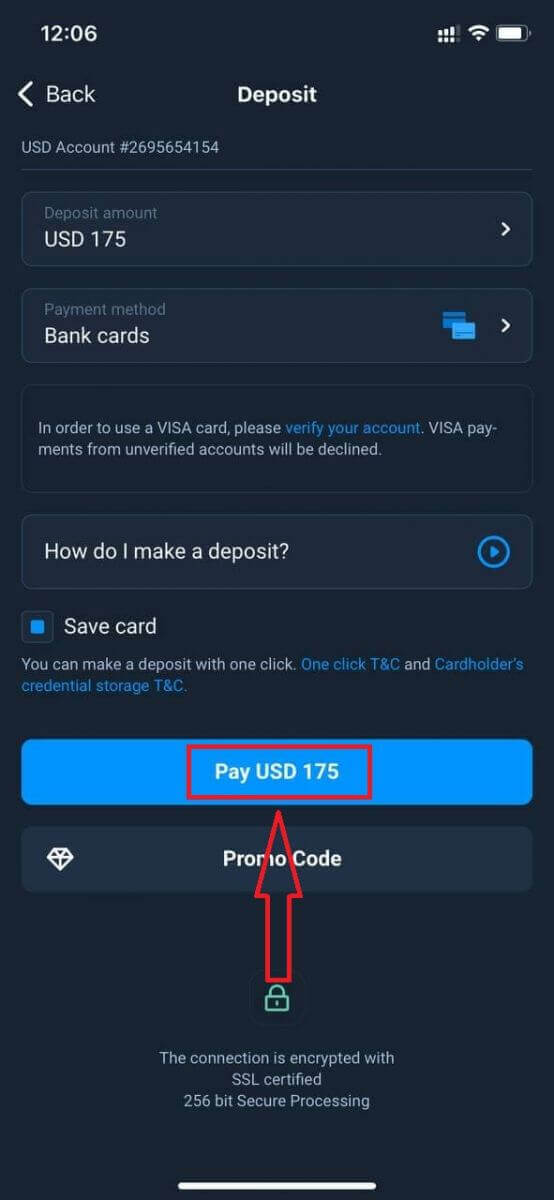
Click "Pay...".
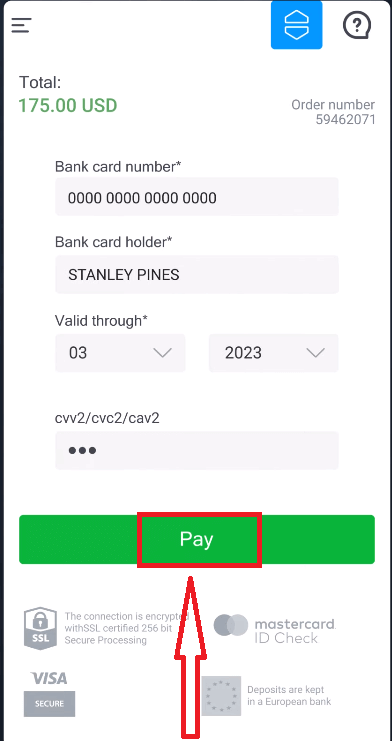
Enter the card data and click "Pay" green button.
Now You can trade on Real Account.
Frequently Asked Questions (FAQ)
When will the funds be credited?
The funds are usually credited to trading accounts fast, but sometimes it can take from 2 to 5 business days (depending on your payment provider.)If the money has not been credited to your account right after you make a deposit, please wait for 1 hour. If after 1 hour there is still no money, please wait and check again.
I Transferred Funds, but They Weren’t Credited to My Account
Make sure the transaction from your side has been completed.If the funds transfer was successful from your side, but the amount was not credited yet to your account, please contact our support team by chat, email, or hotline. You will find all contact information in the "Help" menu.
Sometimes there are some issues with the payment systems. In situations like this, funds are either returned to the payment method or credited to the account with a delay.
Do you charge a brokerage account fee?
If a customer has not made trades in live account or/and has not deposited/withdrawn funds, a $10 (ten US dollars or its equivalent in the account currency) fee will be monthly charged to their accounts. This rule is enshrined in non-trading regulations and KYC/AML Policy.If there are not enough funds in the user account, the amount of the inactivity fee equates to the account balance. No fee will be charged to a zero-balance account. If there is no money in the account, no debt is to be paid to the company.
No service fee is charged to the accont provided that the user makes one trading or non-trading transaction (funds deposit/withdrawal) in their live account within 180 days.
The history of inactivity fees is available in the “Transactions” section of the user account.
Do you charge a fee for making a deposit/withdrawing funds?
No, the company covers the costs of such commissions.How can I get a bonus?
To receive a bonus, you need a promo code. You enter it when funding your account. There are several ways to get a promo code:– It may be available on the platform (check the Deposit tab).
– It may be received as a reward for your progress on Traders Way.
– Also, some promo codes may be available in the brokers official social media groups/communities.
Bonuses: Terms of Use
All the profit a trader makes belongs to him/her. It can be withdrawn any moment and without any further conditions. But note that you cannot withdraw bonus funds themselves: if you submit a withdrawal request, your bonuses are burned.The bonus funds in your account sum up if you apply a bonus promo code when depositing additional money.
Example: In his account, a trader has $100 (their own funds) + $30 (bonus funds). If s/he adds $100 to this account and applies a bonus promo code (+ 30% to the deposit amount), the account balance will be: $200 (own money) + $60 (bonus) = $260.
Promo codes and bonuses can have unique terms conditions of use (validity period, bonus amount).
Please note that you cannot use the bonus money to pay for the Market features.
What happens to my bonuses if I cancel a funds withdrawal?
After making a withdrawal request, you may continue trading using your total balance until the requested amount is debited from your account.While your request is being processed, you may cancel it by clicking the Cancel Request button in the Withdrawal area. If you cancel it, both your funds and bonuses will remain in place and available for use.
If the requested funds and bonuses are already debited from your account, you may still cancel your withdrawal request and recover your bonuses. In this case, contact Customer Support and ask them for assistance.
FAQs
Minimum and maximum amounts vary by country, currency, and account type; many regions have a low minimum but per-transaction and daily maximums are set by both your bank and Olymptrade. Check the deposit form for the exact limits shown before you confirm a card payment.
Log in, open the Deposit page, select Bank Card as the method, choose your currency and enter the amount, then provide card number, expiry, CVV and billing name. Complete any 3D Secure verification your bank requests. Successful card deposits are usually instant but may take a short time to appear—save the transaction ID and check your account balance after confirmation.
Declines commonly stem from failed 3D Secure, insufficient funds, daily or per-transaction limits, expired card details, name mismatch, or your bank blocking international/online gambling-type payments. Start by verifying card details, retrying after clearing cache or using another browser, contact your bank to authorize the merchant, and if the issue persists, contact Olymptrade support with the transaction reference.
Prepaid, virtual, or third-party cards are often restricted; many brokers require the card to belong to the account holder. Olymptrade may request proof of card ownership (a photo of the card showing the last four digits and name), a government ID, and a recent bank statement. Use a personal bank card when possible to avoid verification delays.
Look for standard protections: secure HTTPS connection, 3D Secure authentication, and PCI-compliant payment processors. Avoid public Wi-Fi when entering card details, keep receipts or screenshots of confirmations, and monitor your card statements. Note that withdrawals may require the same payment method and additional verification to comply with AML rules.