Olymptrade KYC Verification: Documents, Steps and Approval
Writen By

Online Trading Platform Researcher and Guide Writer
Researches broker platforms and trading account Systems.
Getting KYC approved on Olymptrade clears temporary account limits and unlocks withdrawals, full payment options, and unrestricted live trading features. Verification concentrates on two checks: government ID (passport, national ID or driver’s licence) and proof of address (utility bill or bank statement). Common delays come from unclear scans, mismatched names, expired IDs, or selfies that don’t match the ID photo.
To complete verification efficiently, upload high-resolution color copies through the platform’s verification area, follow any selfie or liveness prompts, and confirm the payment method owner matches your account name. Allow from a few hours up to several business days for review. If documents are rejected, correct the specific issue, re-upload, and contact support with case details. Prefer PDF or JPEG files under the platform’s size limits and ensure ID expiry dates are valid.
To complete verification efficiently, upload high-resolution color copies through the platform’s verification area, follow any selfie or liveness prompts, and confirm the payment method owner matches your account name. Allow from a few hours up to several business days for review. If documents are rejected, correct the specific issue, re-upload, and contact support with case details. Prefer PDF or JPEG files under the platform’s size limits and ensure ID expiry dates are valid.

Identity documents
A client may submit one of the following documents:- ID card
- Passport
- Driver’s license
Selfie
Simply follow the instructions on the screen.
Proof of Address
A client should provide one of the following documents:
- A bank statement with the client’s name and address visible in a single image and issued no more than 3 months ago.
- A utility bill with the client’s name and address issued maximum 3 months ago.
- A tax declaration with the client’s name and address visible in a single image issued no more than 3 months ago.
- A valid student or work visa or a residence permit for another country.
Proof of Payment
When uploading images for proof of payment, please note that each payment method needing confirmation should be uploaded to the corresponding section. For successful uploading, please do not create any sections on your own.E-wallet
Before verifying the e-wallet used on the platform it should be verified by the e-wallet website.- The client should send a screenshot with the transaction to/from the platform, the owner’s name, and the number of the e-wallet visible in one image.
- If this information is not visible in one screenshot, the client should send several screenshots. For example, one with the e-wallet number and the owner’s name, and the second with the e-wallet number and the transaction visible. The screenshots should be relatable to one another.
Neteller
Click “History” on the left to see the transaction history. If you have a lot of transactions on your Neteller account, choose the transaction type and date to narrow your search and then click Apply. After that, click on the human sign in the upper right corner. Ready! Make a screenshot of all of these pieces of information.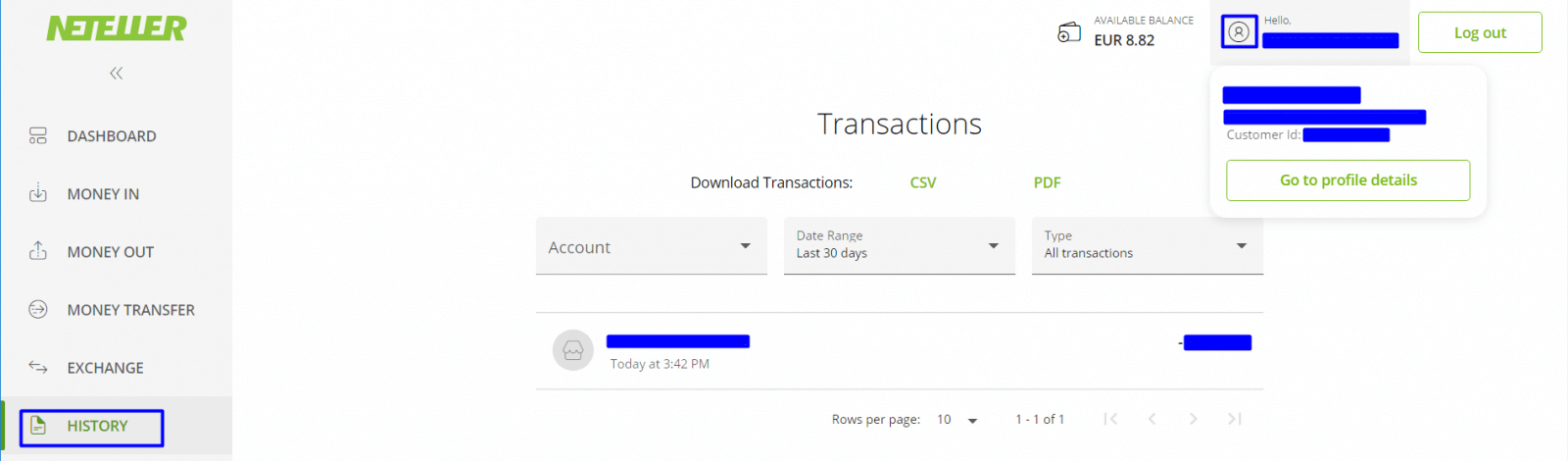
Skrill
Choose “Transactions” on the left-side menu and then choose the time period and transaction type. After that, click on the human sign in the upper right corner. A tab with the e-wallet owner name, e-mail, and user ID will be shown. Make a screenshot of all of these pieces of information. All the information should be visible in a single screenshot.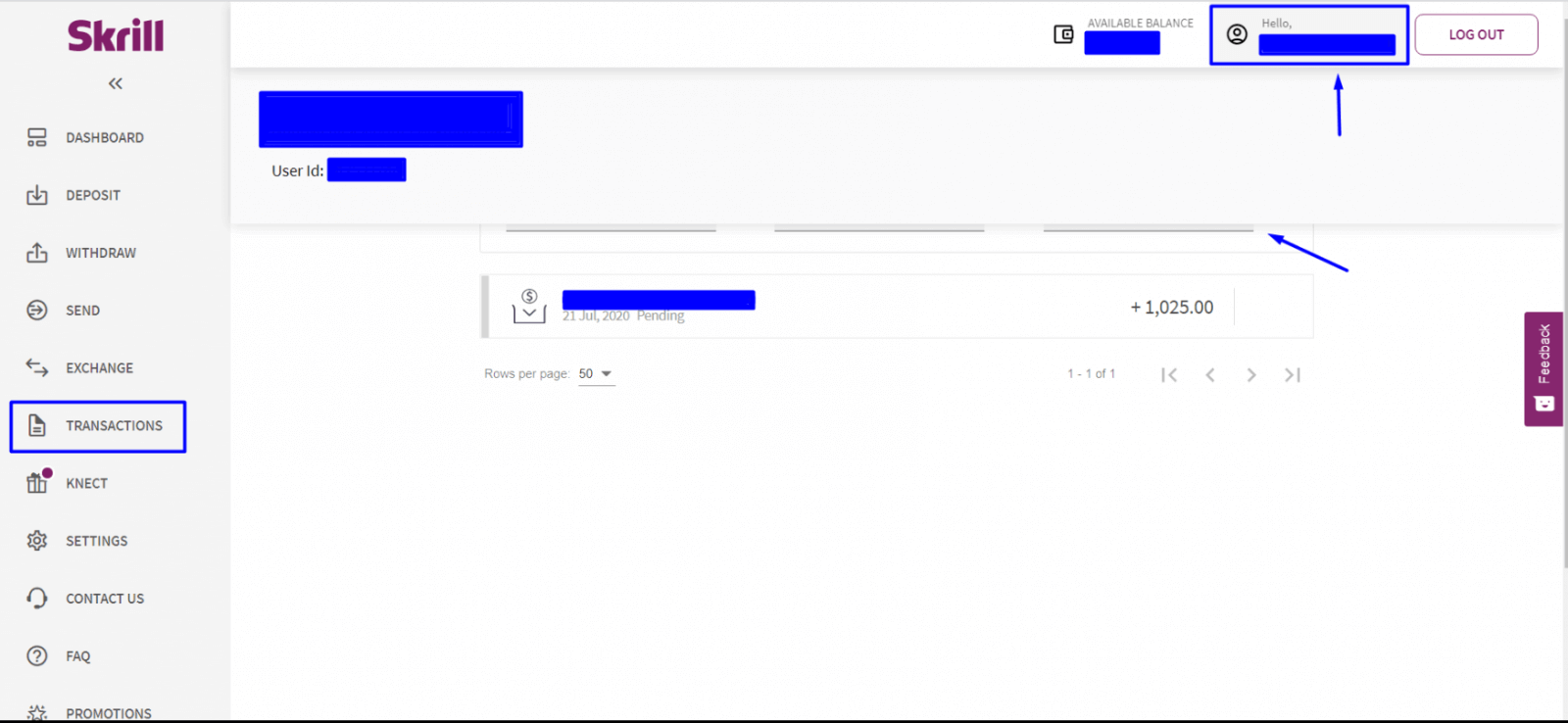
Webmoney
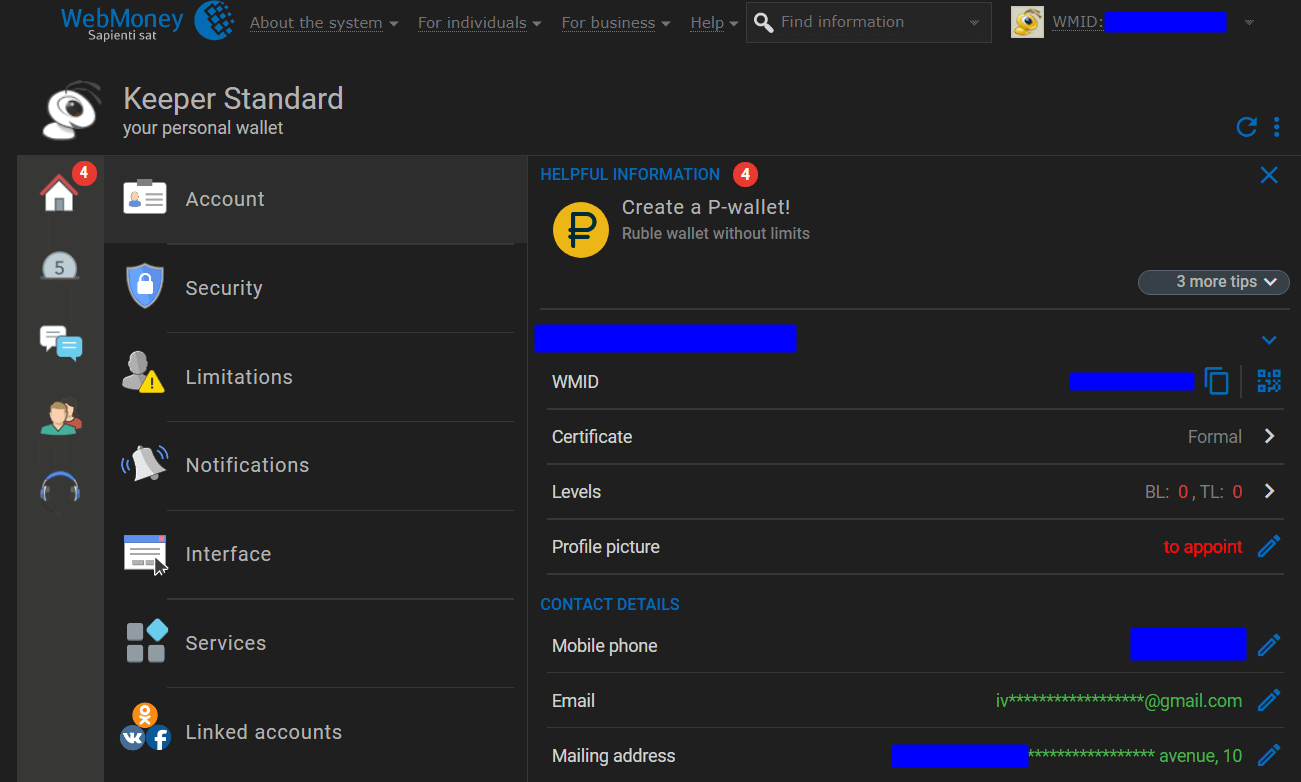
On the main page, please make a screenshot where the WMID, e-wallet number, and transaction amount and date would be seen altogether.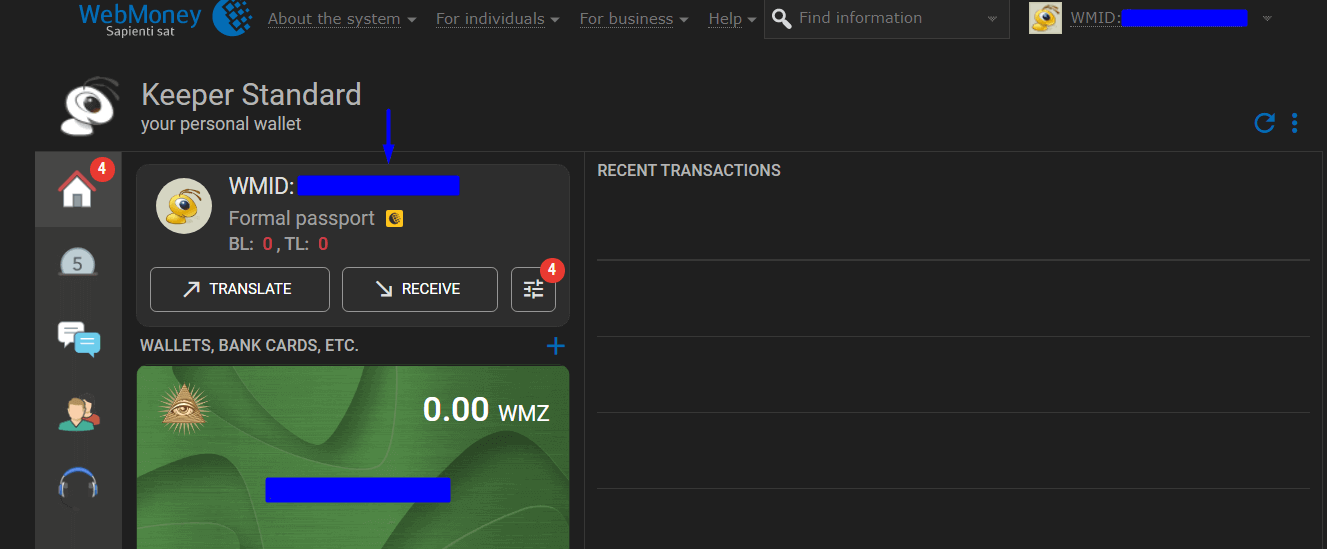
Then click WMID. Make a screenshot of the opened page.
Bitcoin
Please provide a screenshot of transaction details (sum and date). Choose the order history in your e-wallet and make a screenshot of them.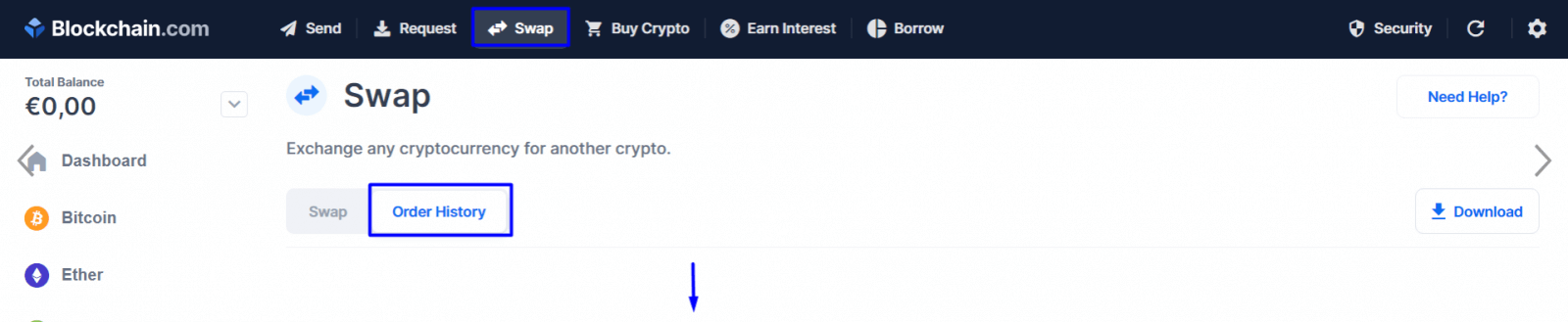
Tether/Ethereum
For confirmation of this e-wallet, a screenshot with the date and amount of transaction should be provided.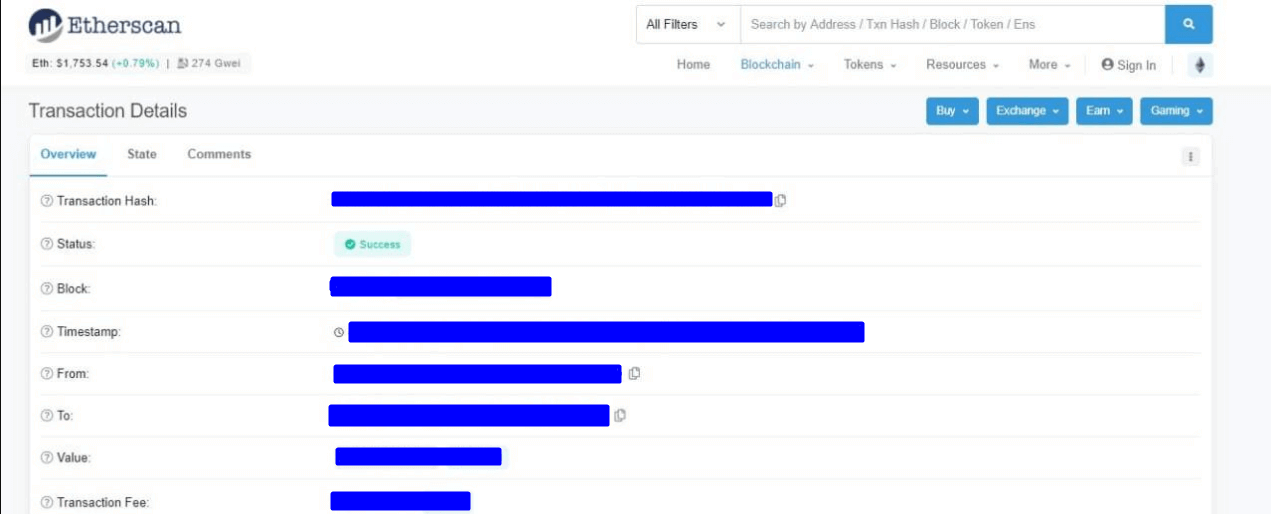
Perfect Money
For confirmation of your Perfect Money e-wallet, 2 screenshots should be provided.The first one with the owner’s name and e-wallet number.
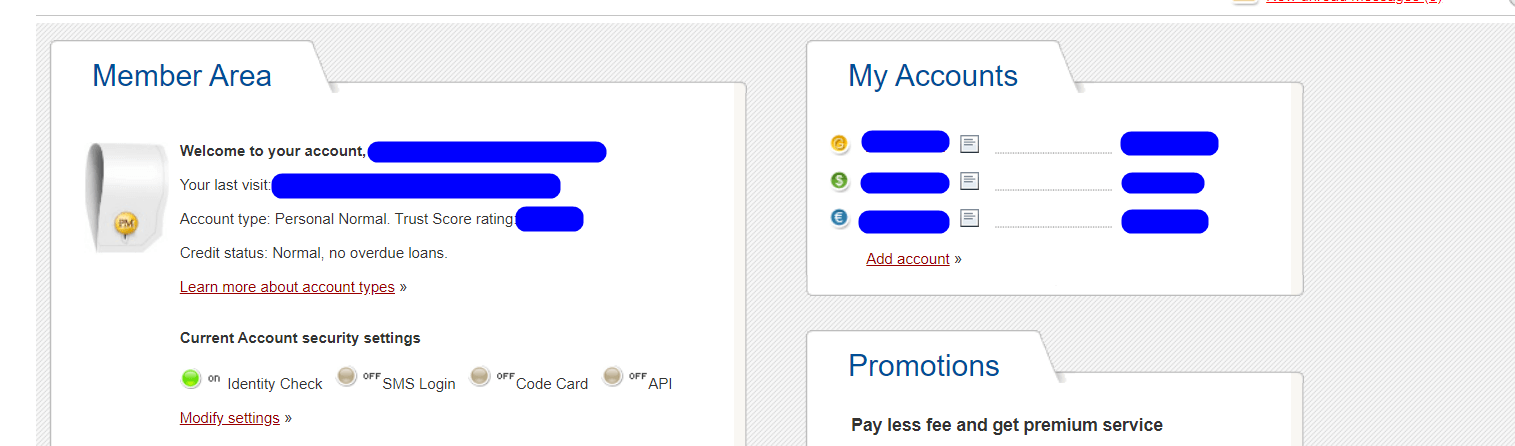
The second with your e-wallet number and the transaction to the platform (amount and date should be visible).
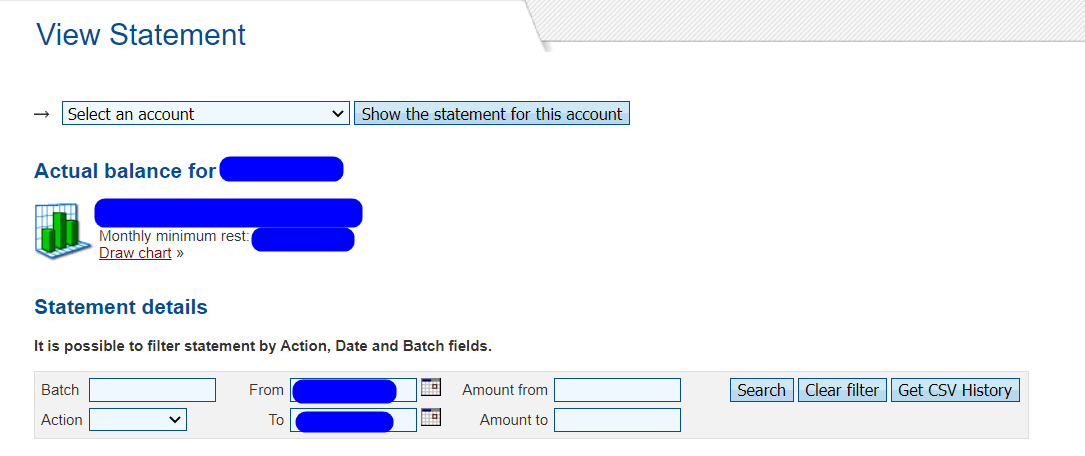
Astropay card
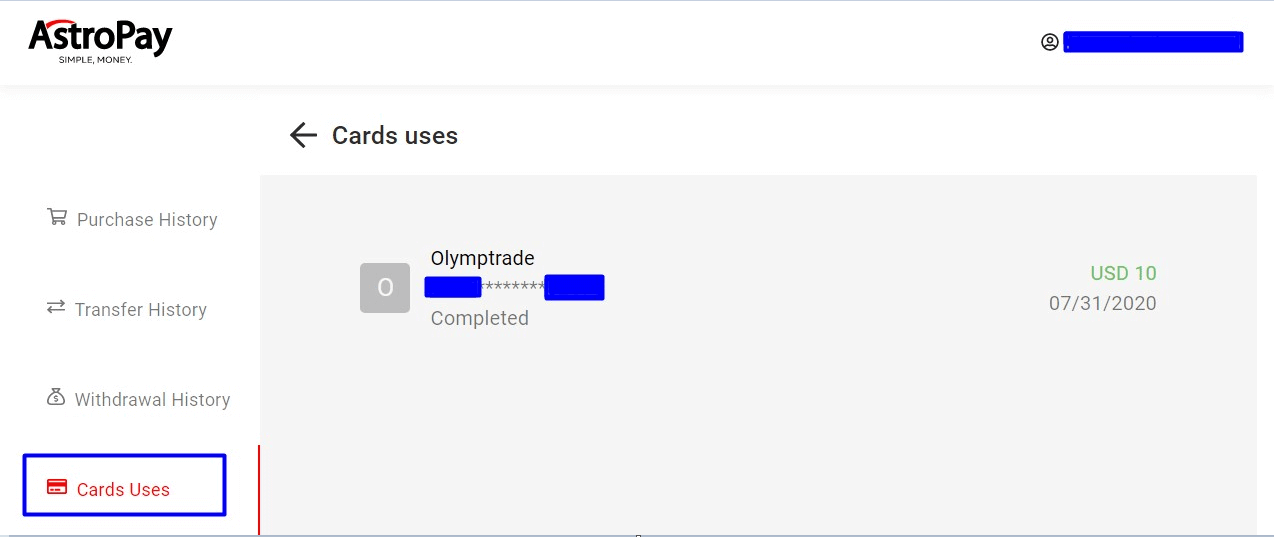
1. To confirm an Astropay Card, the customer should send a screenshot from their Astropay Card account. The account holder’s name and transaction details (sum and date) must both be visible in one image.2. If a client claims that they can not provide a screenshot from point 1, let them send a screenshot from their bank account confirming these transactions. The name and the transactions must be visible in a single screenshot.
Example:
A client should open the “Card Uses” section and take a screenshot of this page if they deposited the whole sum of the card at once.
Bank Card
1. The customer should provide a photo of their card. The back of the card is not required.2. The first 6 and the last 4 digits, expiration date, and the owner’s name should be visible in a single photo.
3. Stolen/blocked card — a document certifying that it was issued to the customer.
4. If there is no document such as in point 3, a bank statement with the name and bank card number visible in a single photo or screenshot.
5. If there is no statement with the owner’s name and card number, let the customer provide one with his name and the transaction(s) to the platform. The sum, date, and the name should be visible in one image.
6. If nothing can be provided, please contact KYC.
Virtual Card
For confirmation of virtual cards, a statement with the owner’s name and transactions should be sent. All data should be visible in one image.Confirmation of the Origin of Funds
In some cases, the Company may request a document that will confirm the source of funds.Why is it requested?
- To protect our users from fraud.
- To comply with corresponding laws that allow us to operate as a financial company.
- an income statement for the past year
- a bank statement with an indication of the source of income
- an agreement for the sale of shares
- an agreement for the sale of property or a company
- a loan agreement
- a document that proves share ownership.
FAQs
Olymptrade accepts a government-issued photo ID (passport, national ID or driver’s licence) plus proof of address such as a recent utility bill, bank statement or official letter. All files must be clear, in color, show full name and date, and be translated if not in a supported language.
Open your account menu, select Verification or KYC, choose the document type, then upload the front/back of the ID and a proof-of-address file. Complete any selfie/liveness check and confirm the upload. Wait for the confirmation email and check the account status page for updates.
Rejections commonly occur because the image is blurred, edges are cropped, the document is expired, names don’t match your profile, or the selfie doesn’t match the ID. Fix by rescanning in good light, providing the full document, ensuring expiry is valid, and uploading a clear selfie using the platform’s guide before re-submitting.
Review time ranges from a few hours to several business days depending on volume and extra checks. Withdrawals are typically enabled after successful verification, but some payment methods require that the withdrawal go back to the original funding source, and additional checks may apply for large payouts.
No—KYC can usually be completed before you deposit or trade. Verification is about identity and address, not account activity. However, certain withdrawals or promotions may have funding or turnover conditions, so check specific terms for your region.